Categories
Practical Exercises

Adobe Animate

With the brief of creating a nightclub advertisement/infographic, it was decided that the theme of this animation was going to be underground and grunge. The chosen colour palette used within the design process was going to be red, black and grey.

With the theme and colour palette thought out, it was time to design the logo concept. To keep the grunge theme, the name/logo of the fictional nightclub was going to include the old English font. This font has become very popular in alternative and gothic communities. The name of the nightclub will be ‘After Hours’, this name was decided because it fit perfectly with the aspect of a gothic/grunge nightclub, it felt vampiric which was very desirable.
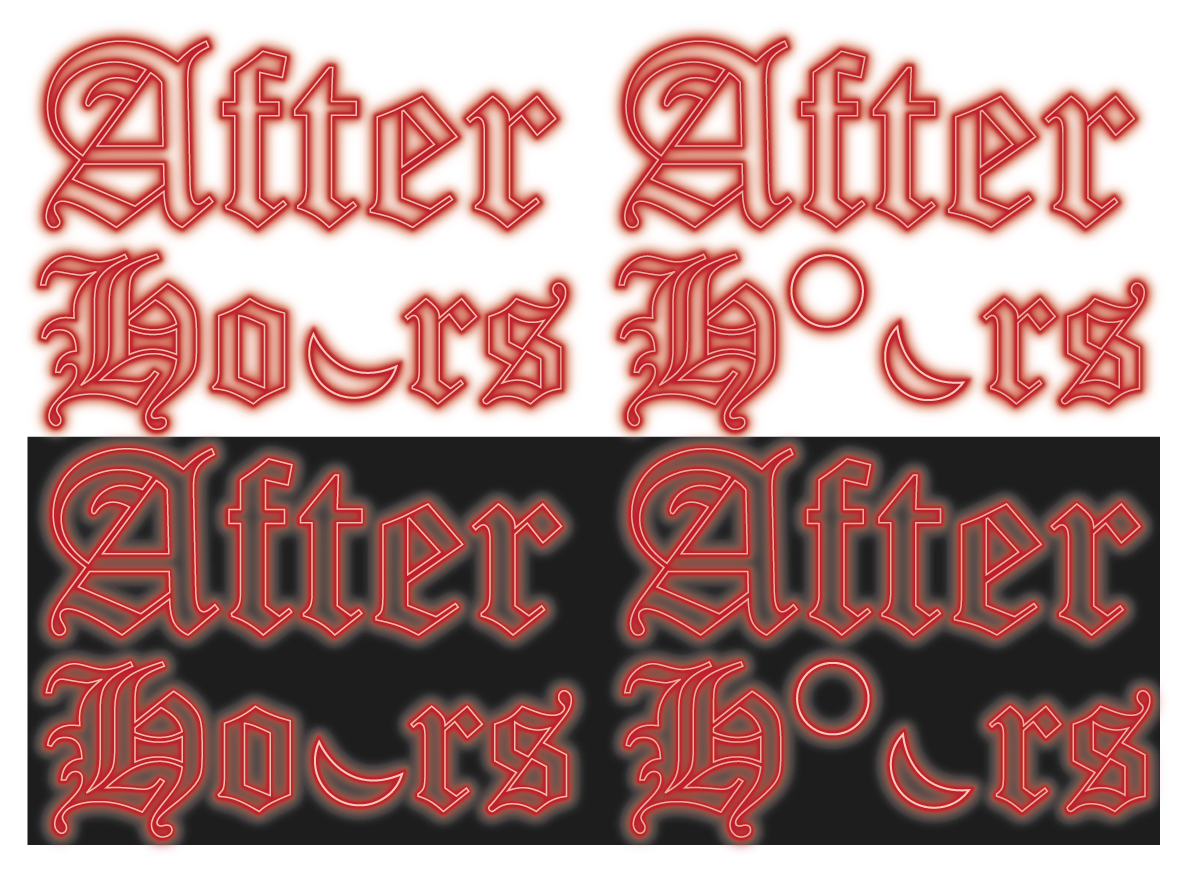
Logo variations against a light and dark background showing the drastic differences the neon effect has.

To include the aspect of conceptual design to this logo, it was decided to swap out the ‘U’ in ‘hours’ and replace it with a crescent moon, still giving the desired U-shape to still be easily readable. After some experimenting in Adobe Illustrator the neon sign effect was created.
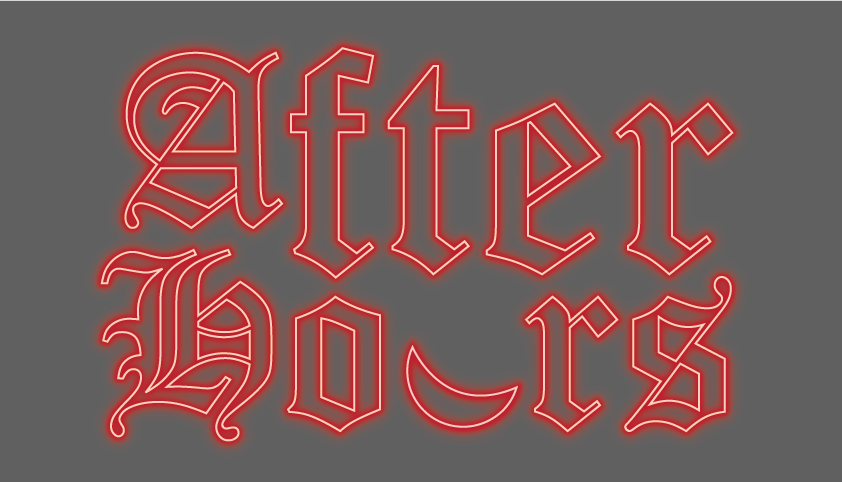
Final logo design against a dark background, this is the desired background colour for the final animation.

The background in the animation was created using multiple layers of squares so it could move smoothly. The idea of it being zoomed in almost creates an optical illusion, drawing the viewer in. The dancers on either side of the screen and the arms that enter the screen later were added to show users what this nightclub can offer without the animation becoming chaotic by using a lot of text.
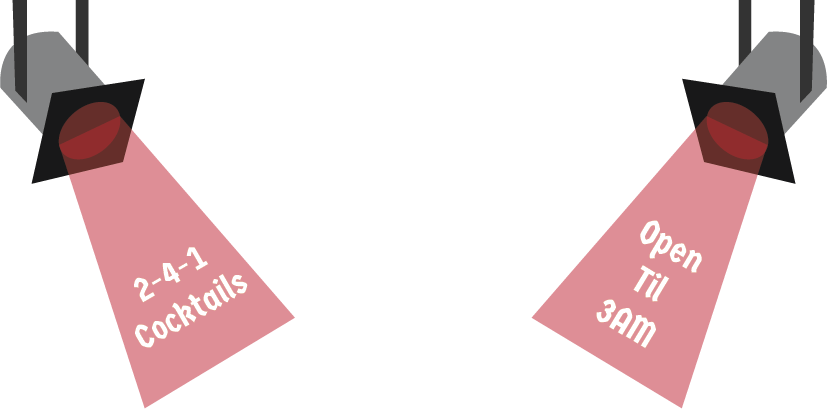
Pop-up illustrations which include informative text, this will be presented in the final animation.

In a separate animation document, the pop-ups were created and edited. This was done by inputting certain codes to create the button that triggers the pop-up. In the video, there’s a demonstration of both buttons being clicked so the pop-up can play, then clicked again to close the pop-up.
Final animation for the fictional nightclub ‘After Hours’. This video demonstrates the use of the interactive spotlight buttons. Audio is royalty free from Pixabay.
Categories
Practical Exercises

Adobe Substance 3D Stager

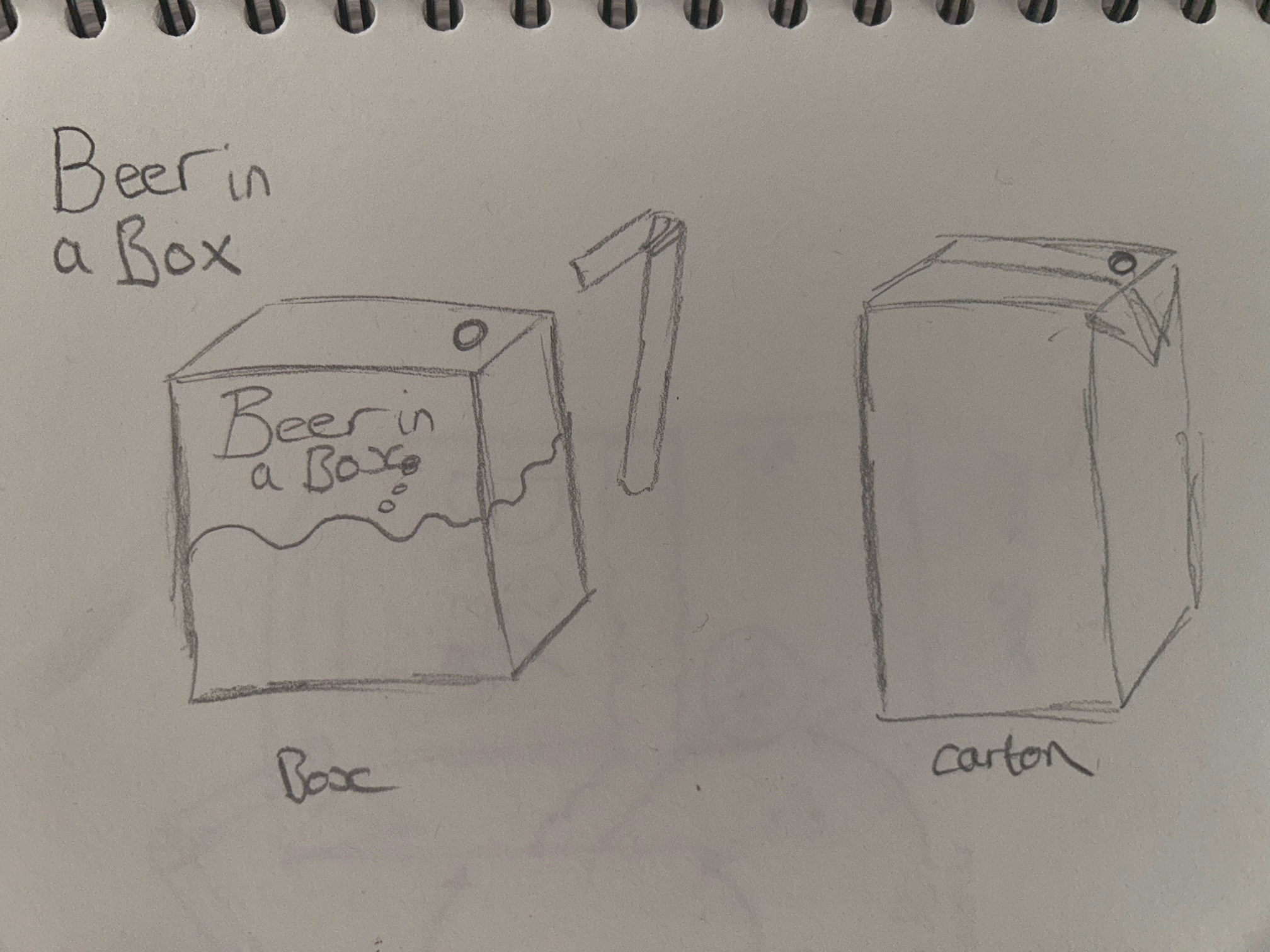
The aim of this task is to sell something in a box. Using creative thinking and Adobe Substance 3D stager to make this mystery box very appealing. Taking a different approach with this task, ‘Beer in a Box’ was created, this is an alcoholic lager served in a juice box for adults that want to feel a little childhood nostalgia.

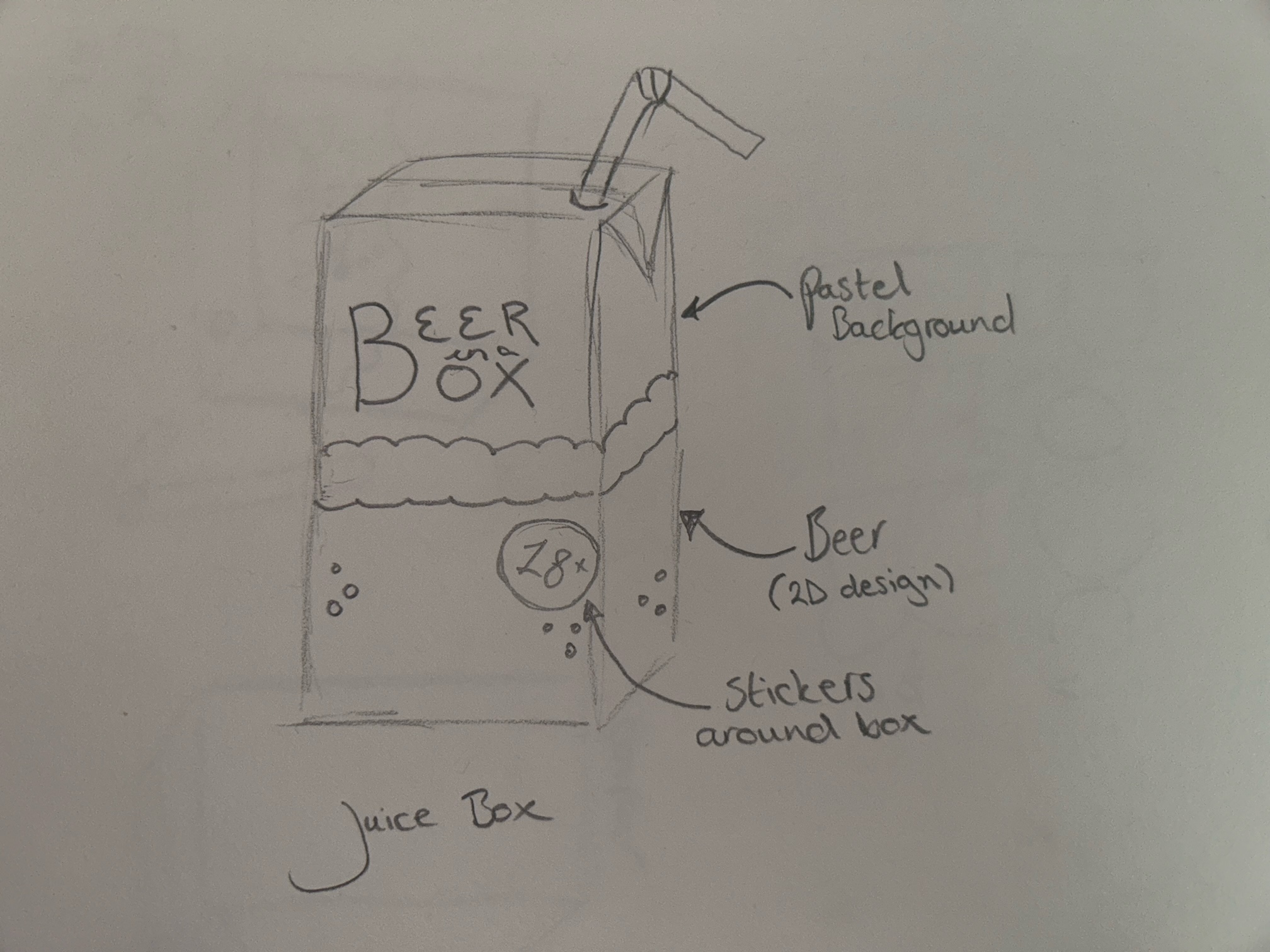
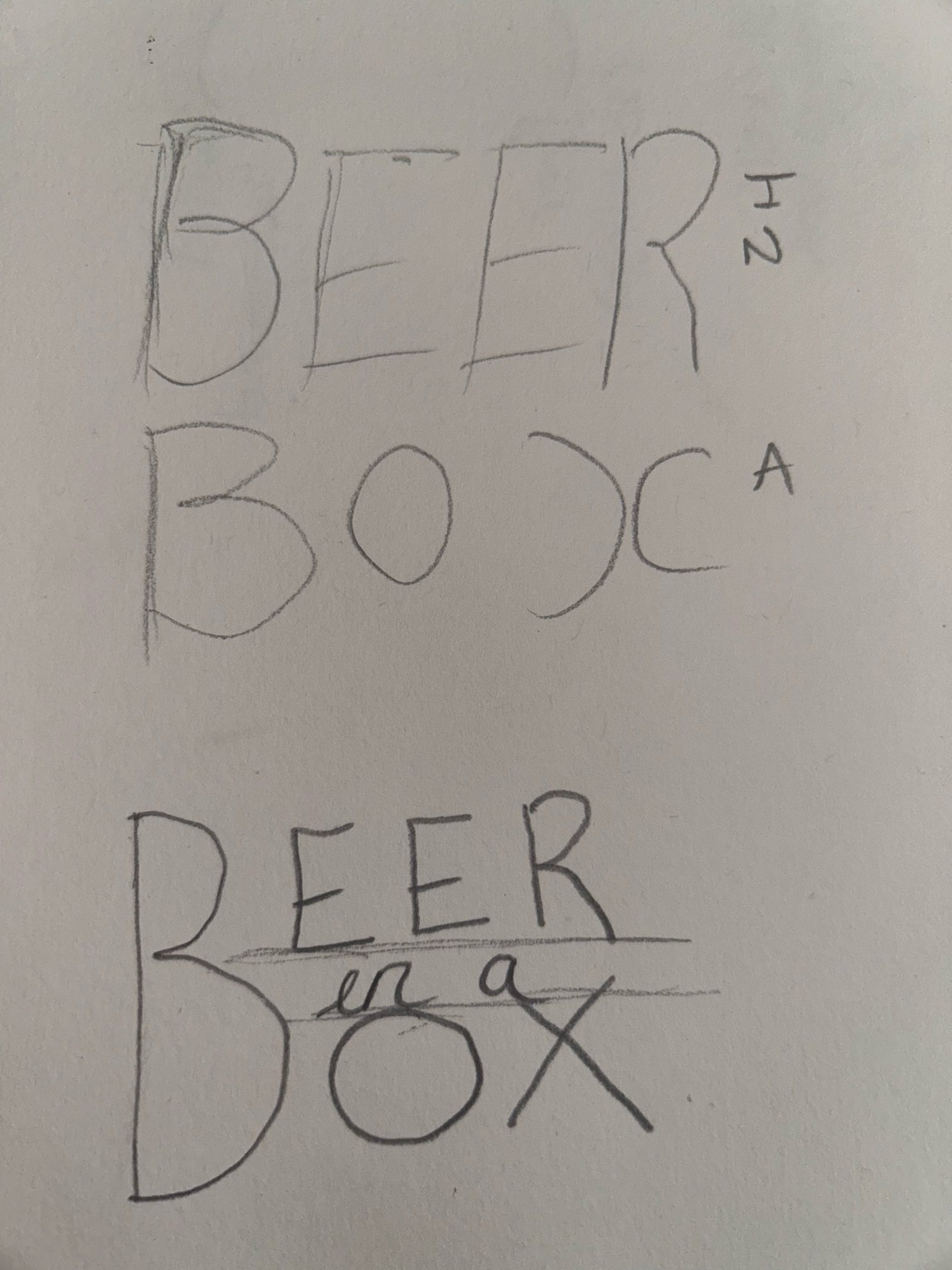
These are the first initial sketches of the logo and packaging design. The aim for the logo is to have it looking very clean and uniform. It was decided that only one ‘B’ will be used, this adds a playful touch while still appearing professional and remaining easily readable.

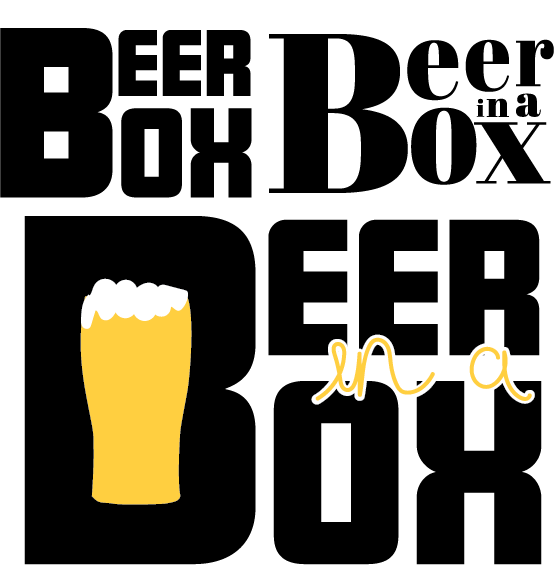
Digitally enhanced variety of logo designs for ‘Beer in a Box’.

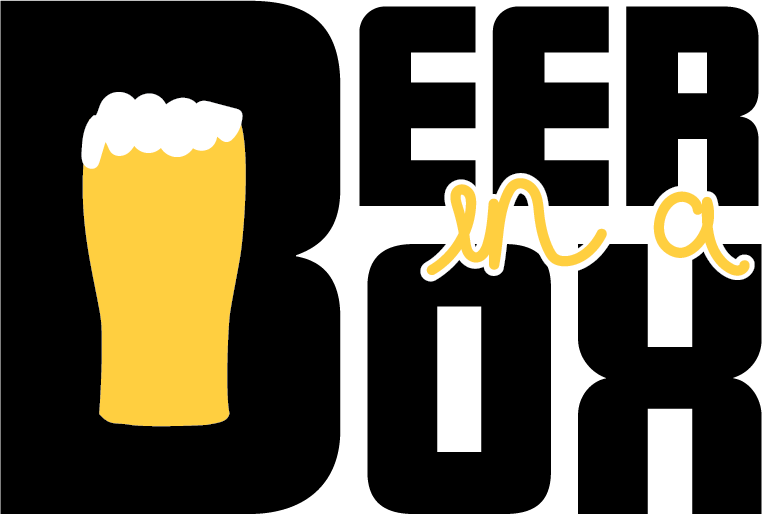
After digitally experimenting with the logo designs, these were the three that were developed and the logo below is the final design to be used within the packaging. Conceptual design has been included with a pint of pint placed inside the ‘B’. The ‘in a’ in between the two bigger words has been created using handwriting and the brush tool in Adobe Illustrator. This adds to the childish effect of the concept.

Finalised logo design which will be used for the packaging design.

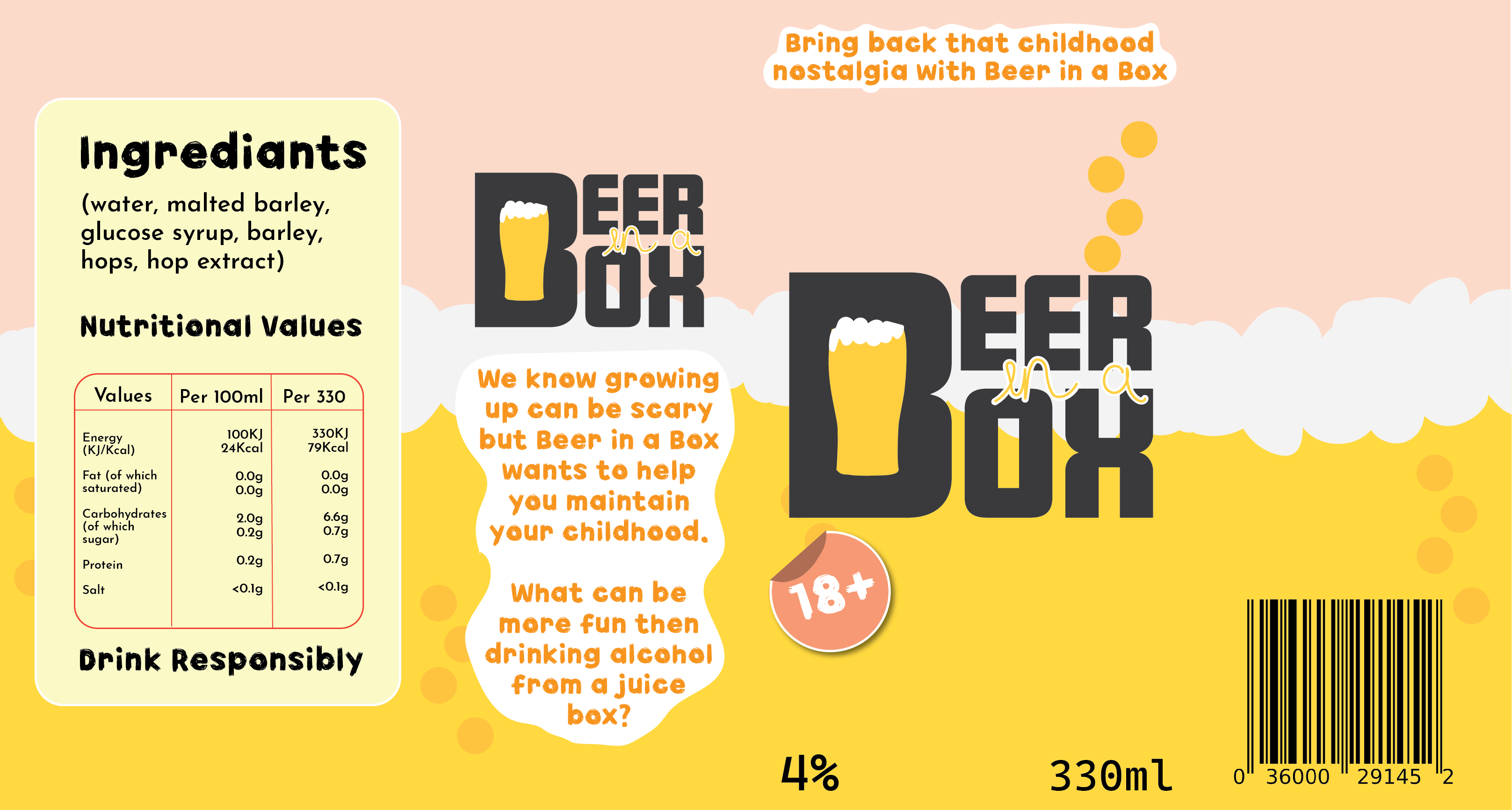
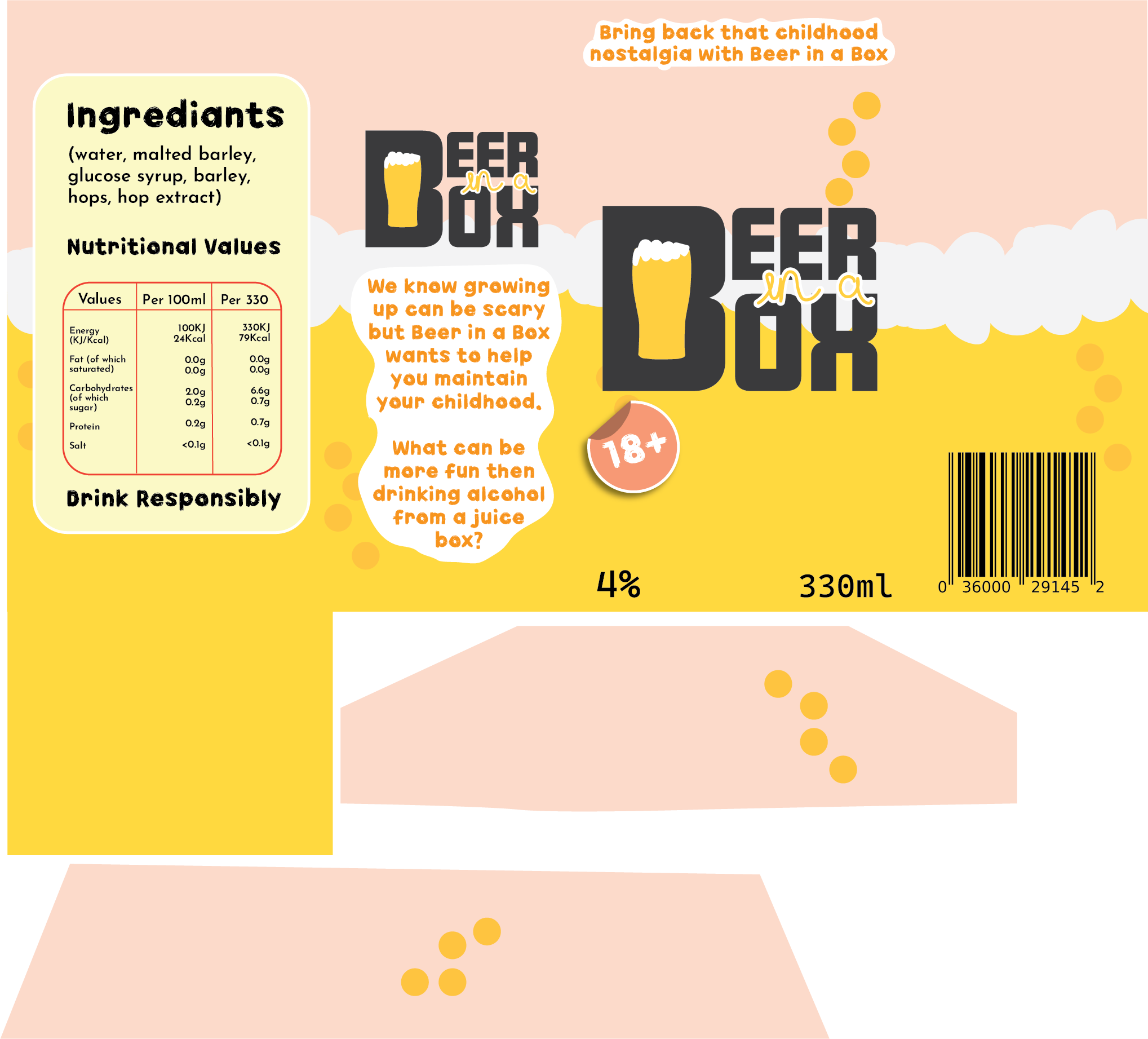
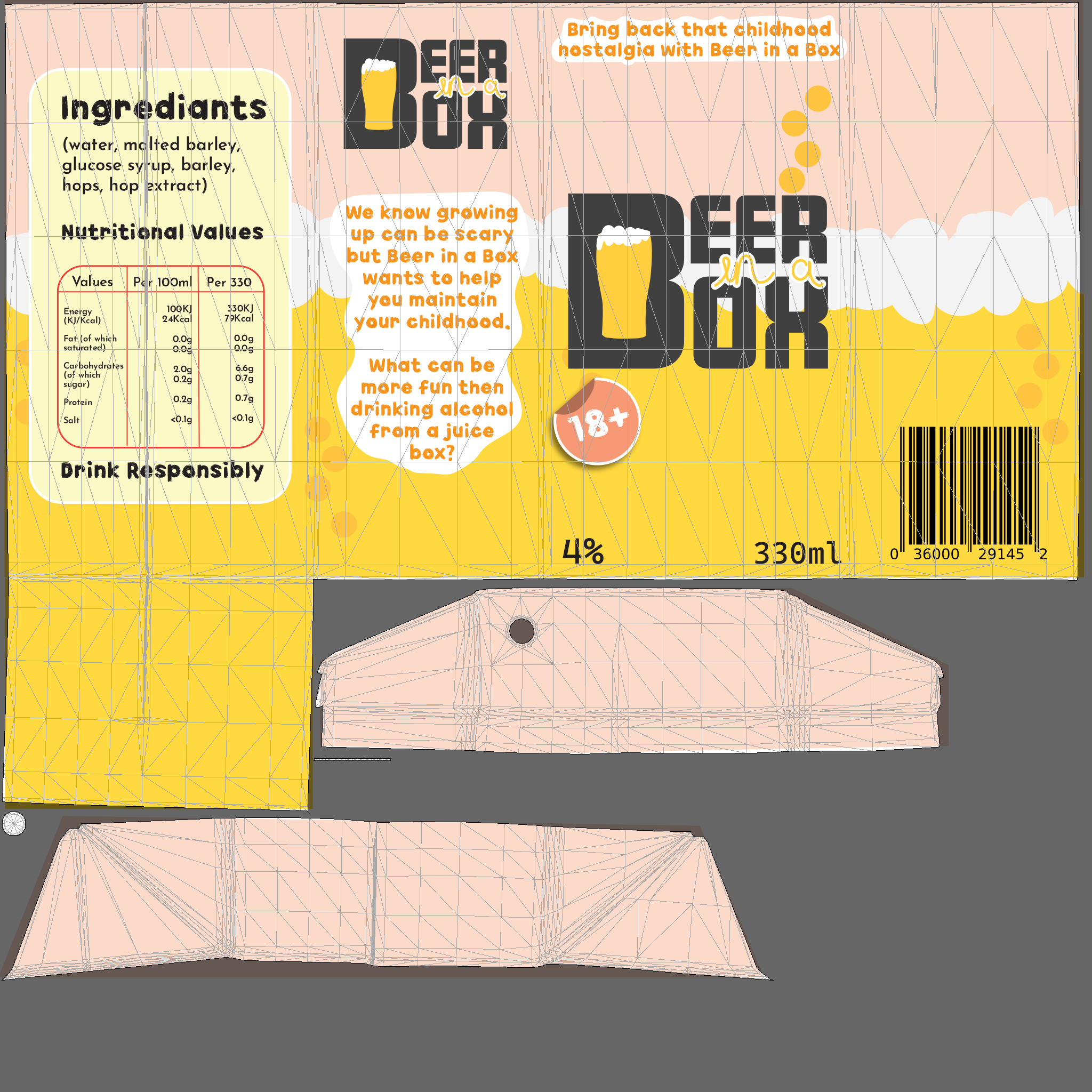
This is the final design for the carton. Using the juice carton template from Substance 3D Stager and exporting the UV map, the final packaging design was developed. Remaining with the child-like theme, the colour scheme is very light and cheerful, and sticker illustrations have been placed around the design.

2D version of the final packaging design.

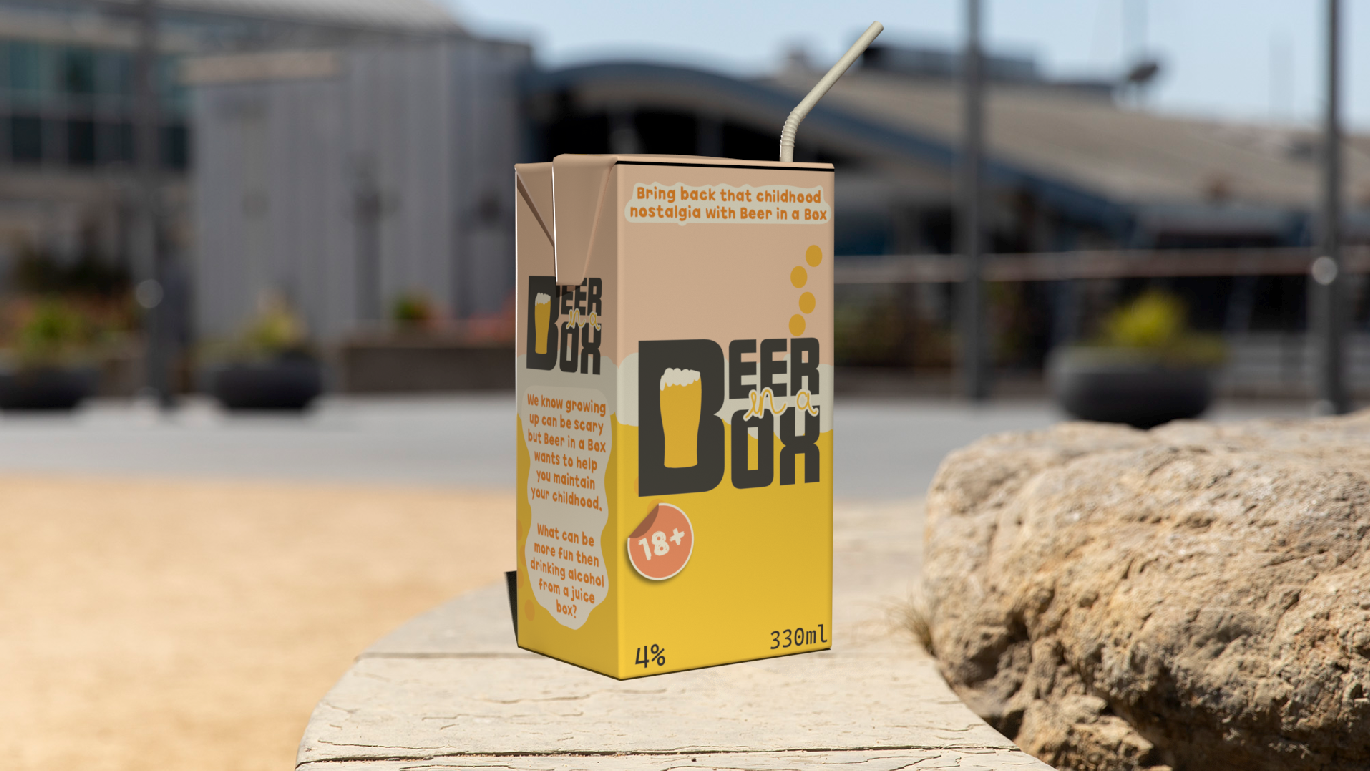
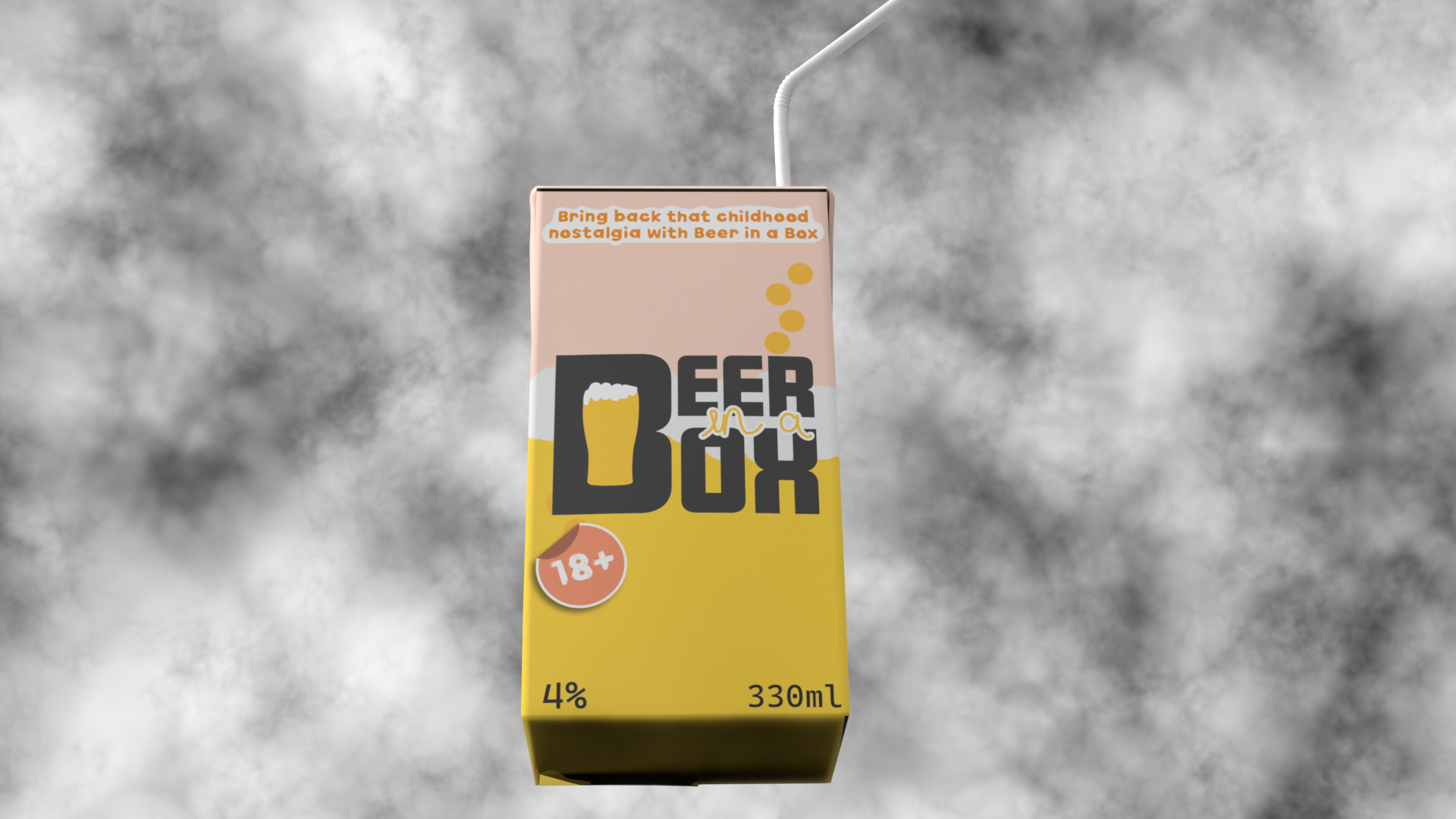
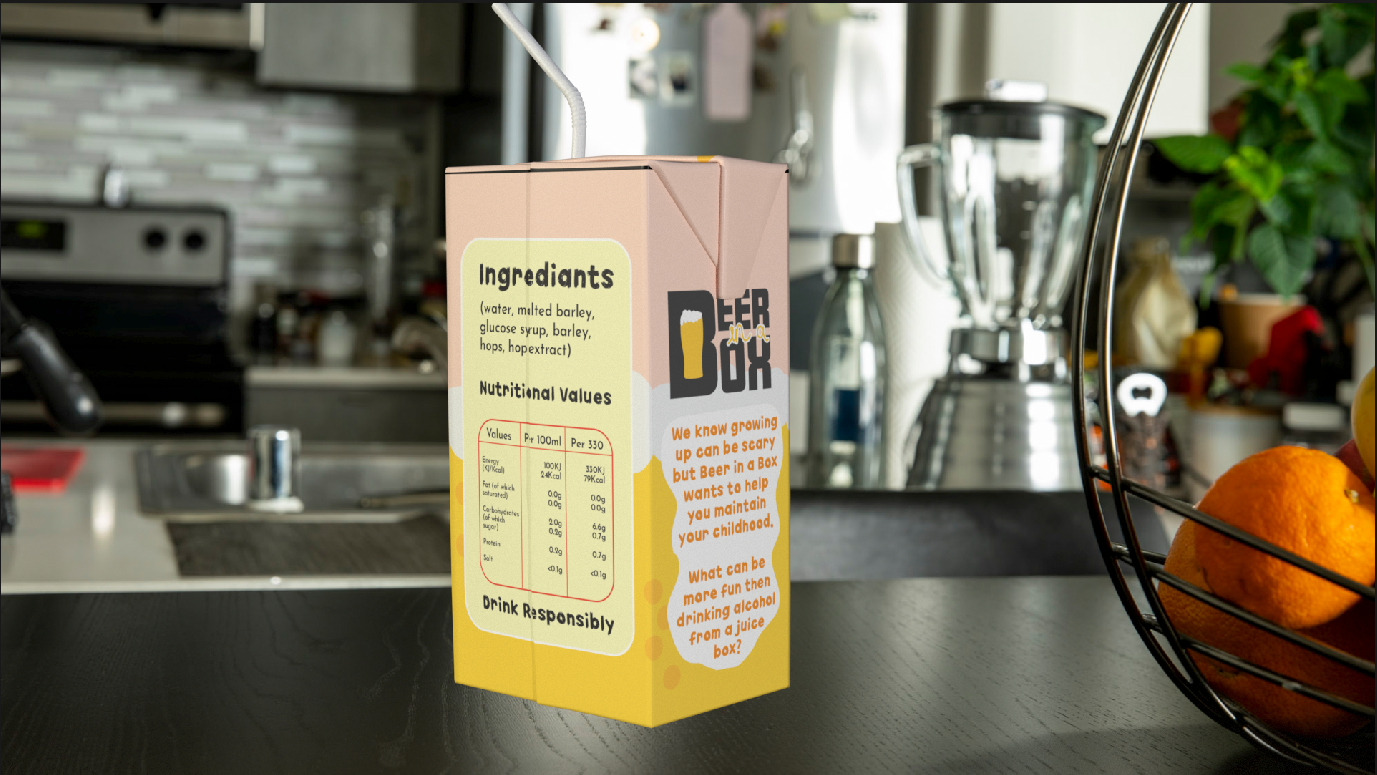
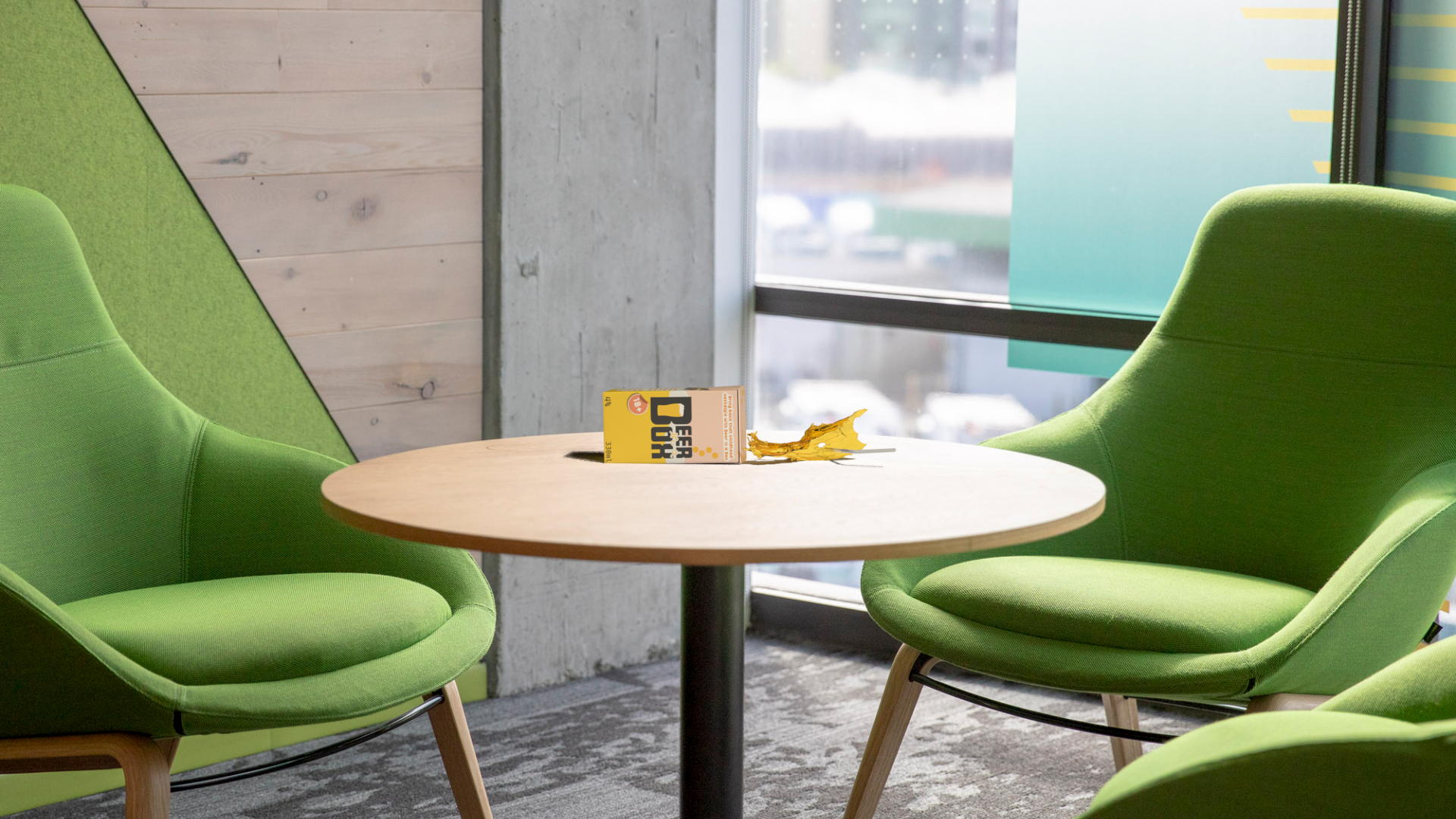
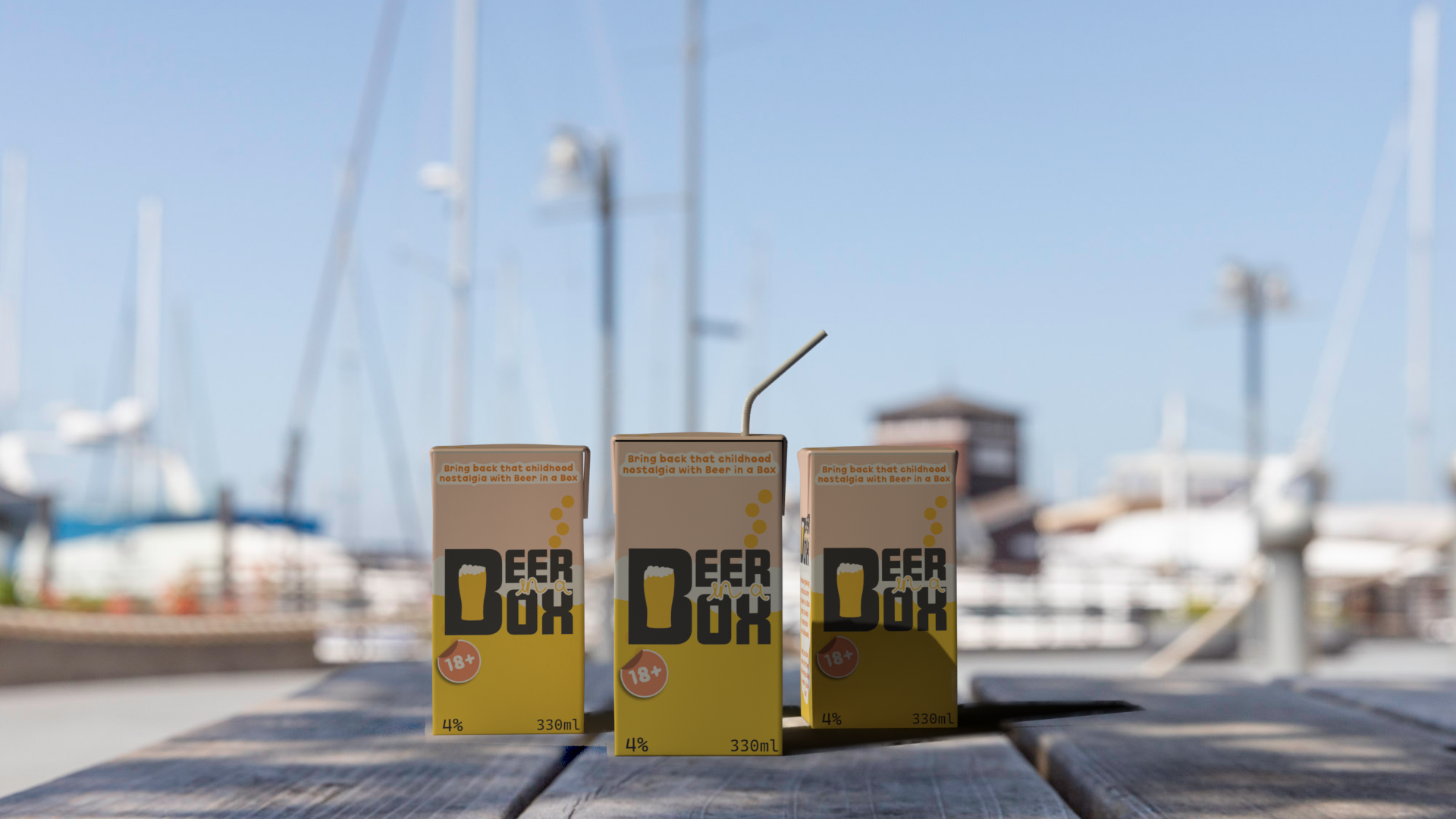
Here are five rendered images from Substance Stager, after importing the design back onto the 3D model. Each image shows the carton against different background and environments, even when spilled.

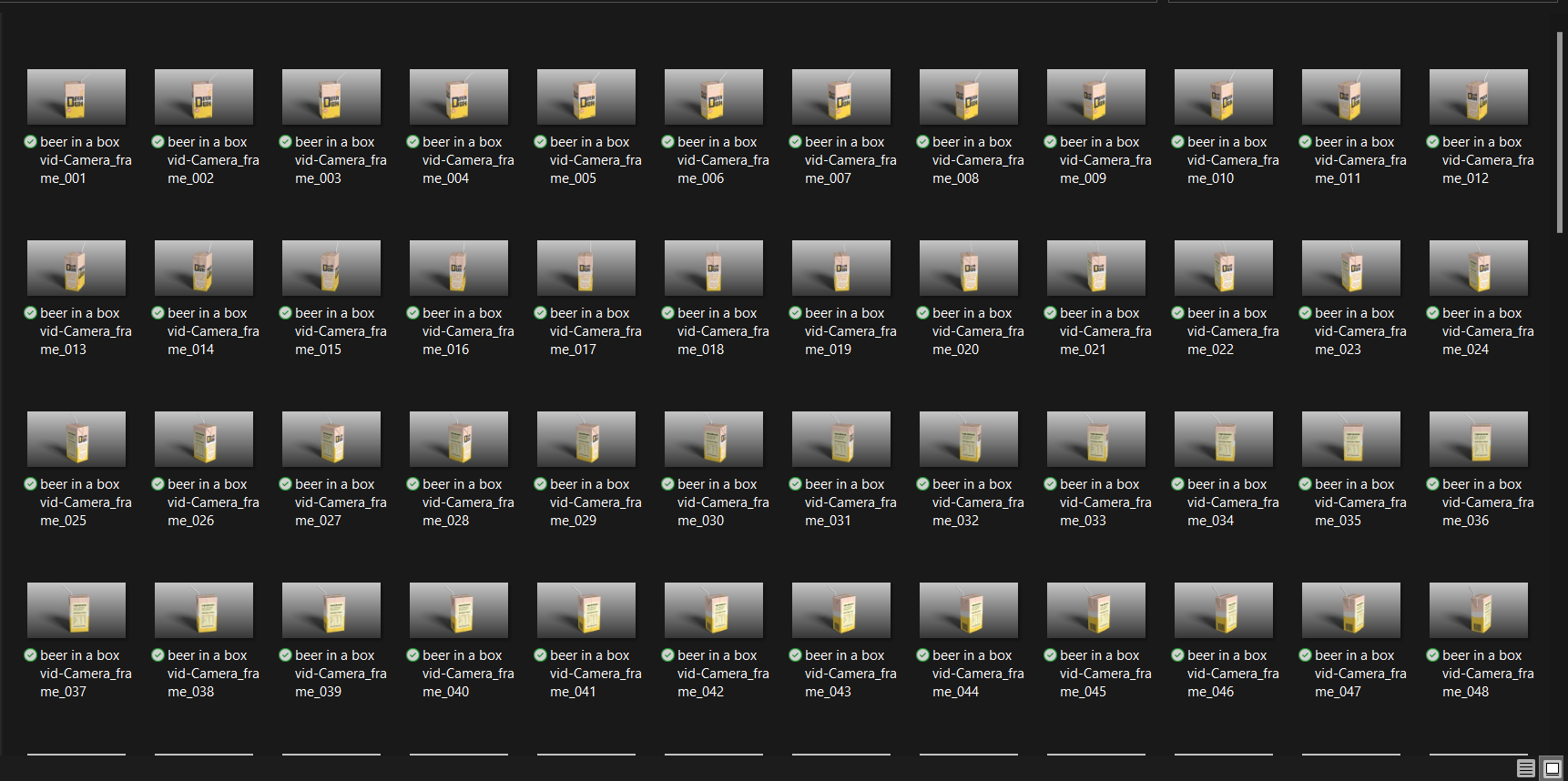
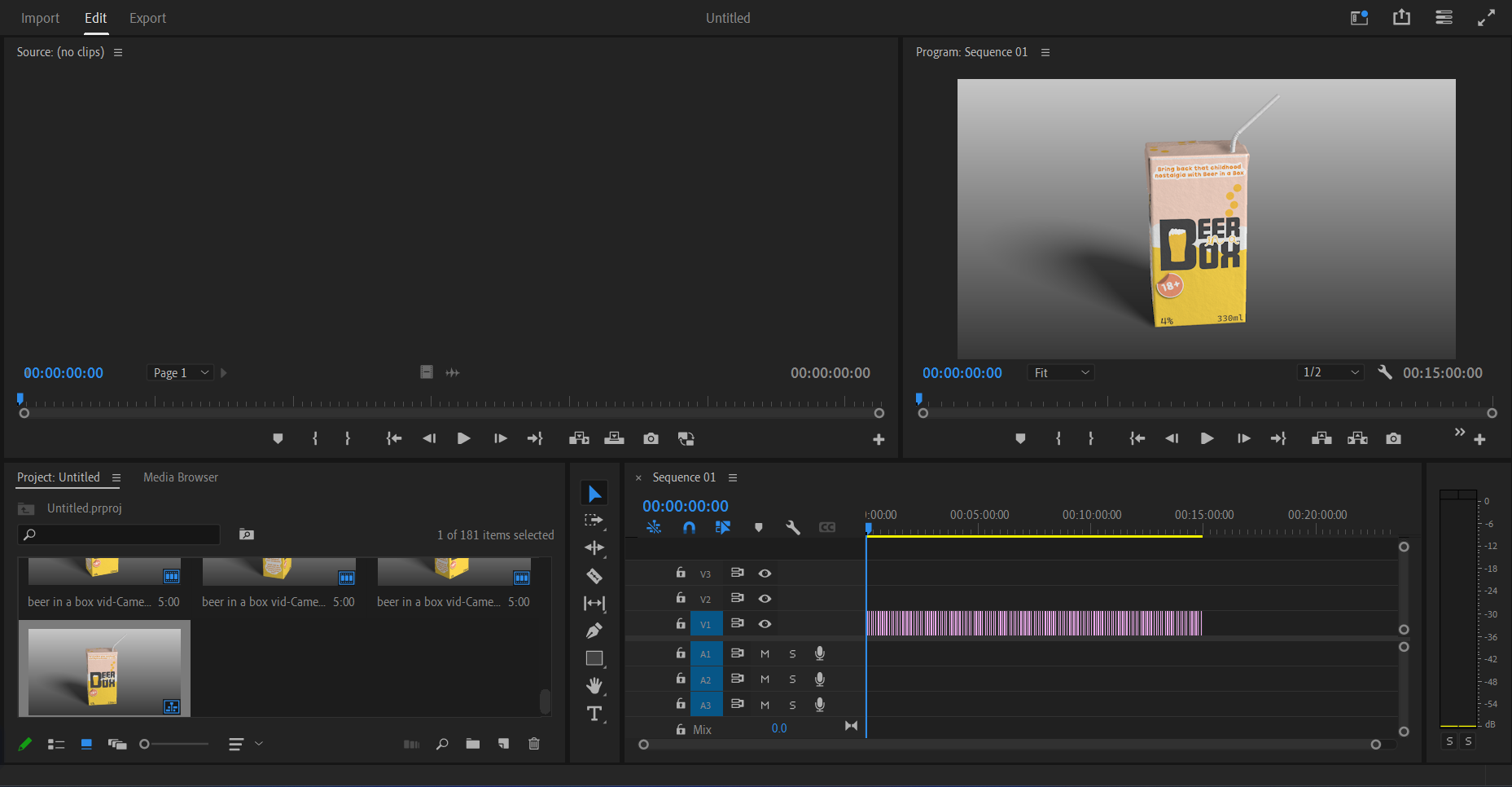
After animating a turntable showcasing the product design, each key frame was rendered. For a six second turntable animation, 180 images were rendered. Those images were then taken into Adobe Premiere to be placed in a 0.01 second sequence, thus creating the smooth animation shown below.

Final turntable animation of the ‘Beer in a Box’ juice carton.
Categories
Practical Exercises

Maya Modelling

Maya is a professional software used to create realistic models for game design and animation. It’s a 3D software that delivers good quality graphics (www.autodesk.co.uk, n.d.).

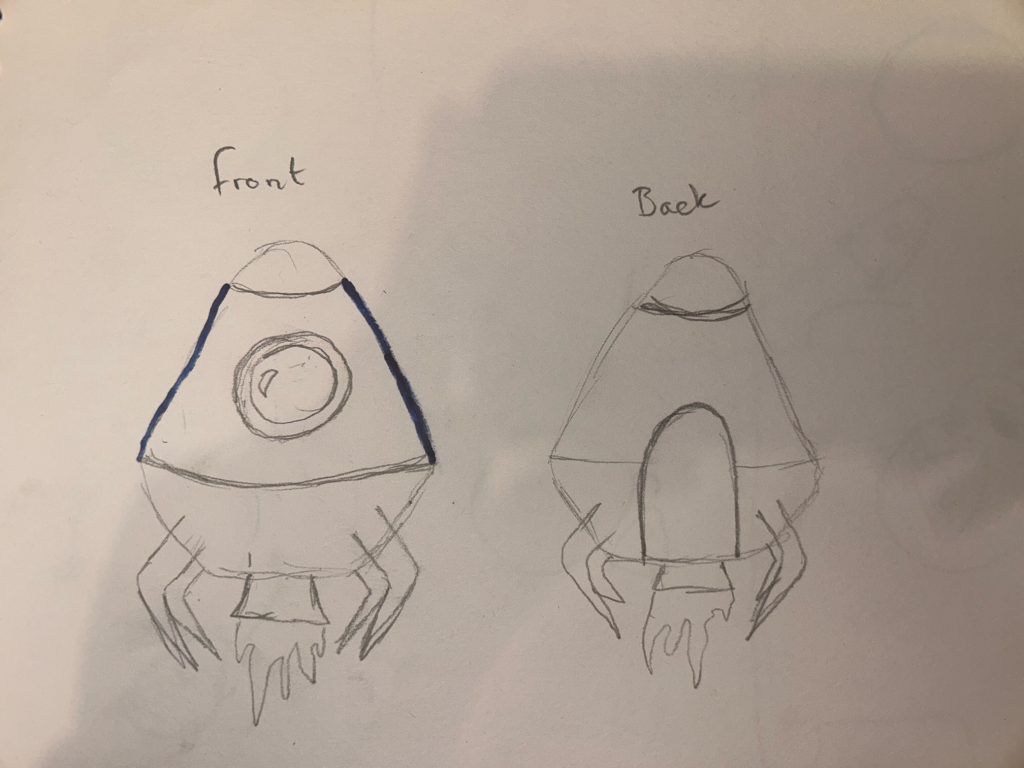
Starting off with some rough sketches showcasing the desired appearance of the final escape pod model. The sketch is simple with only four legs, two windows and an engine at the bottom.

Rough sketch of the desired model shape, showing the front and back view.

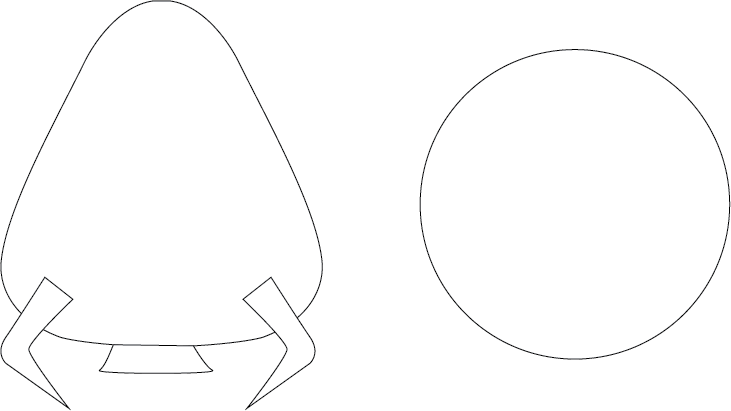
It was best to use a template to get the best shape possible, so a basic template was created, showing a 2D illustration of the front and top view of the model. This template was then imported into Maya multiple times and positioned into the desired area.

The template created to help get the precise shape in Maya.

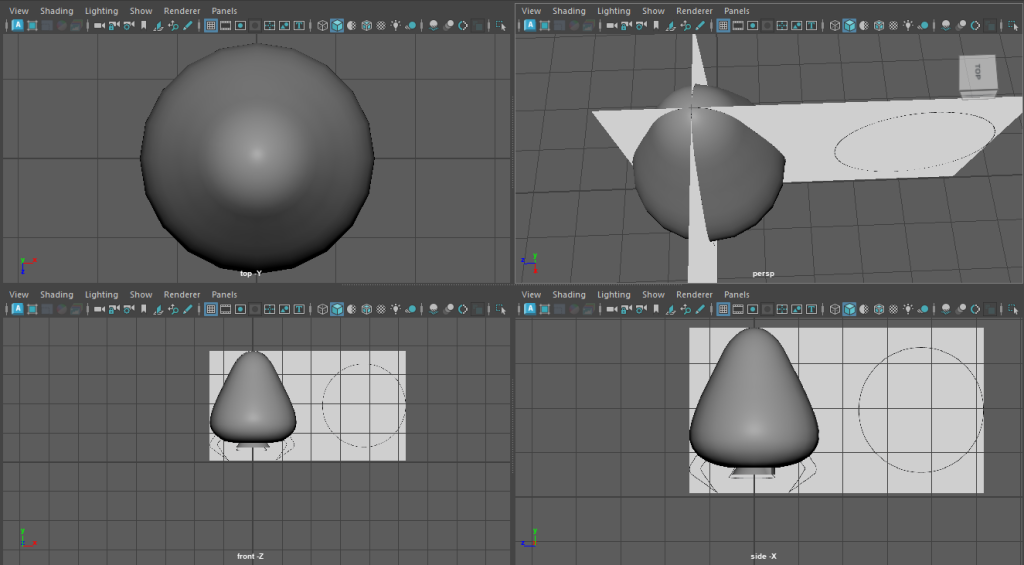
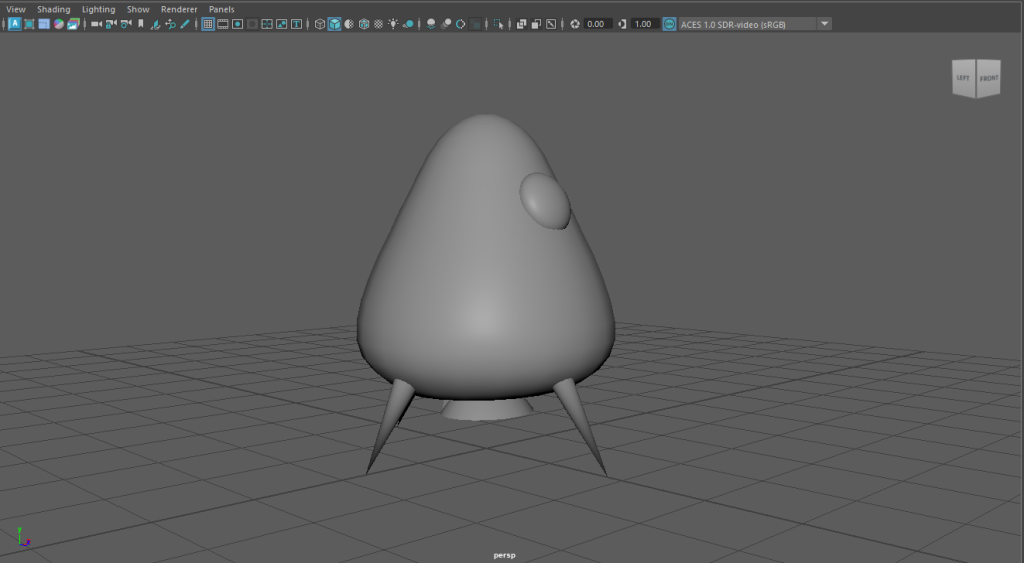
This is a screenshot showing how the template had been imported, from here a basic body model was created using the sphere tool. The sphere was then manipulated into the pear-shaped pod shown.

Screenshot of the template being used and the body model against the template.

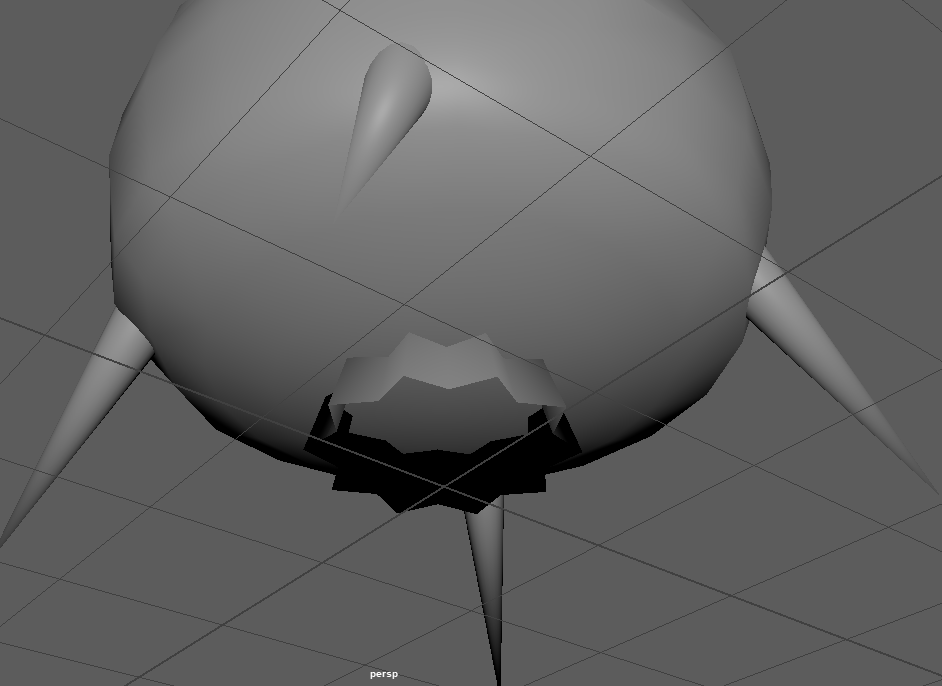
The template was then taken away and the extra parts were developed. The legs were created using the cone tool, the engine was also created using the bottom end of a cone, the cone was then manipulated using every other vector and brought inwards, creating the star shape.

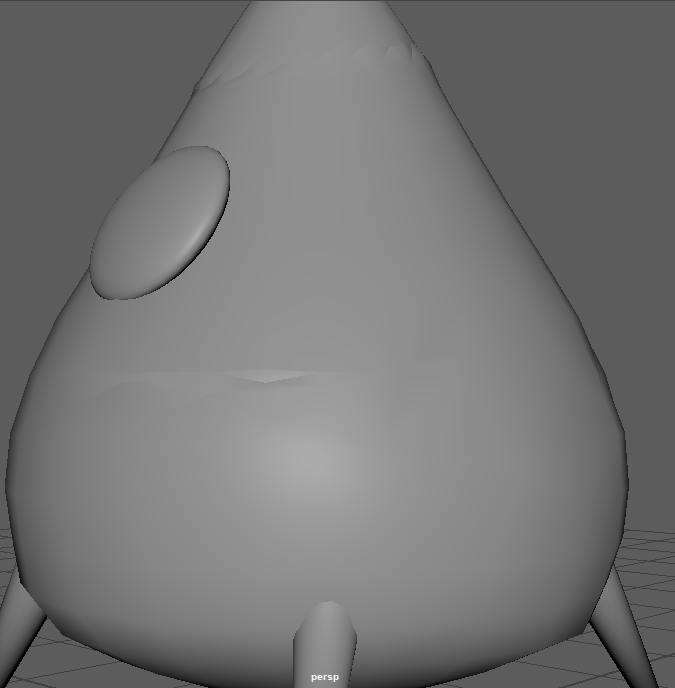
Using the vector tool again for the body, small dents were created around the model. These dents created an old and worn effect.

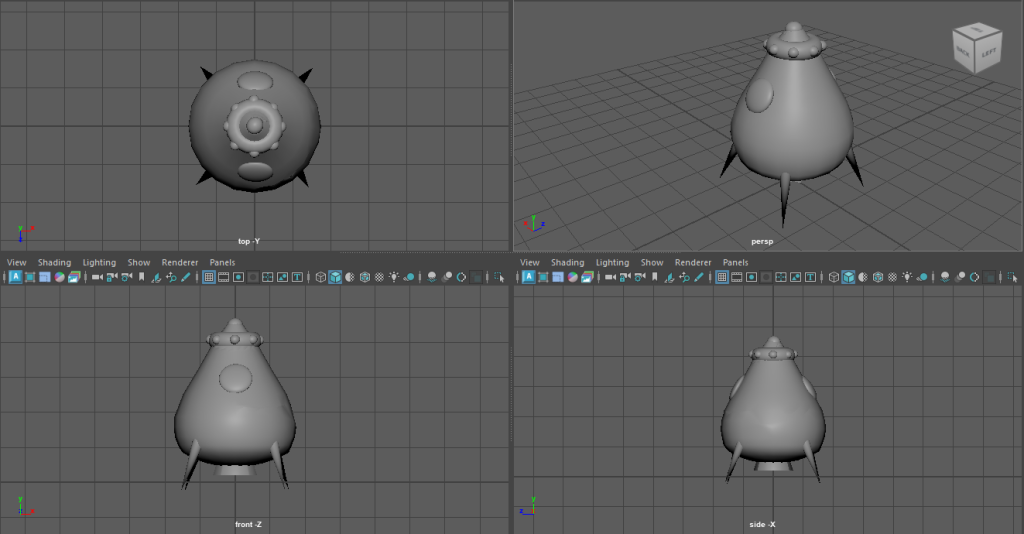
Final model displayed in different camera angles.

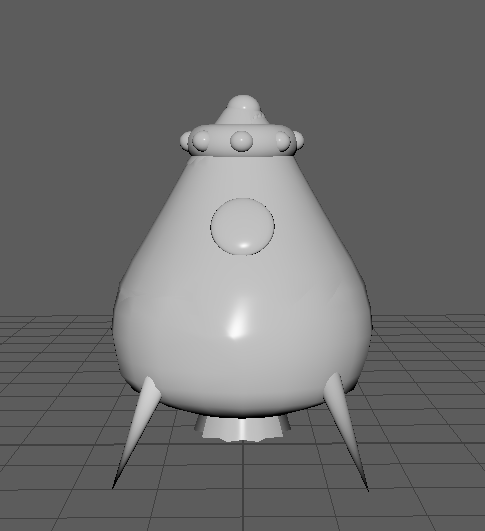
This is the final untextured model in Maya. Each camera angle has been displayed to show each side of the model. Smaller details have been added to decrease the simplicity of the model.

Completed model after being assigned a new material.

Each section of the model had now been assigned a new material and was now ready to create the UV maps to be textured.

References

www.autodesk.co.uk. (n.d.). Maya Software | Get Prices & Buy Official Maya 2022. [online] Available at: https://www.autodesk.co.uk/products/maya/overview?term=1-YEAR&tab=subscription.

Categories
Practical Exercises

Maya Texturing and Concept Rendering

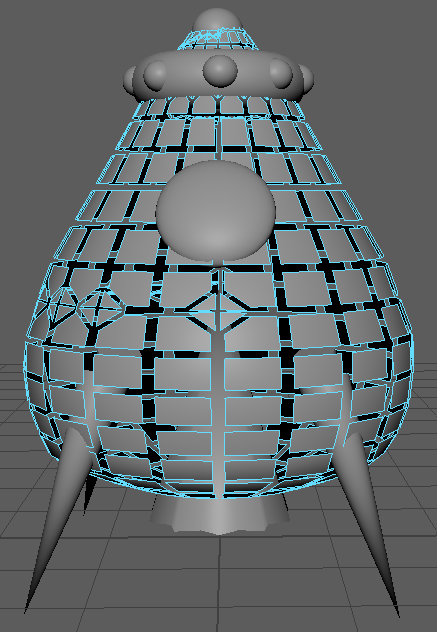
The model has now been placed in the vertex face mode to check that all faces and edges are in the correct position and that nothing looks out of place or distorted.

Maya model in vertex face mode, used to correct any out of place faces.

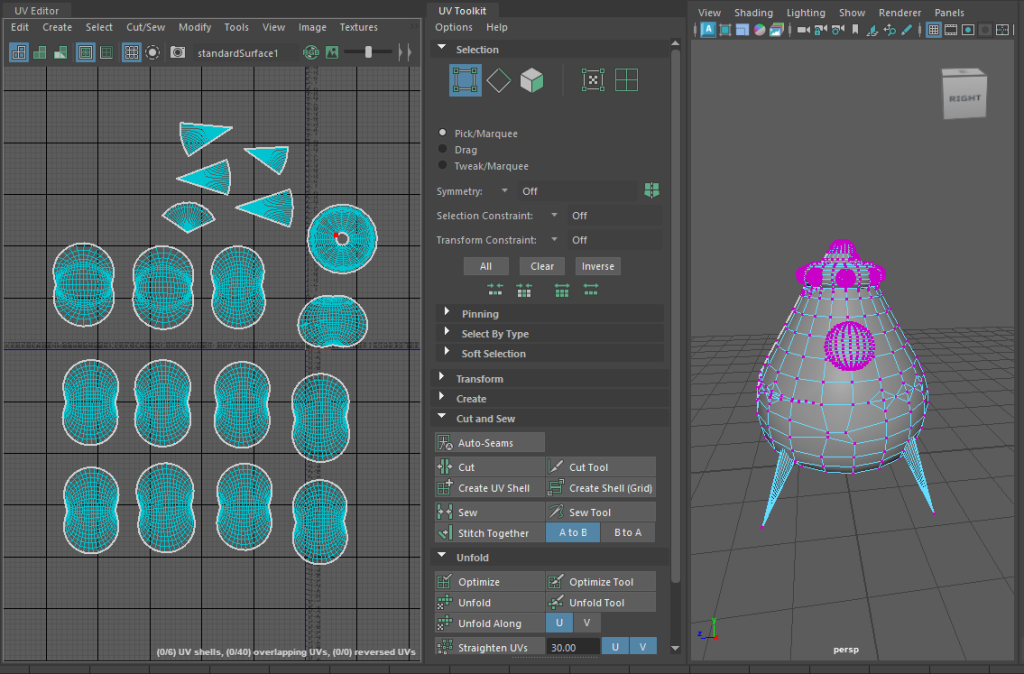
Once the vertex faces had been checked, the UV maps can be developed. There was an option to automatically create the UV maps, but this screenshot is the aftermath of manually cutting and unfolding each object. The UVs were then laid out and exported, ready for texturing.

Screenshot showing the completion of the UV mapping.

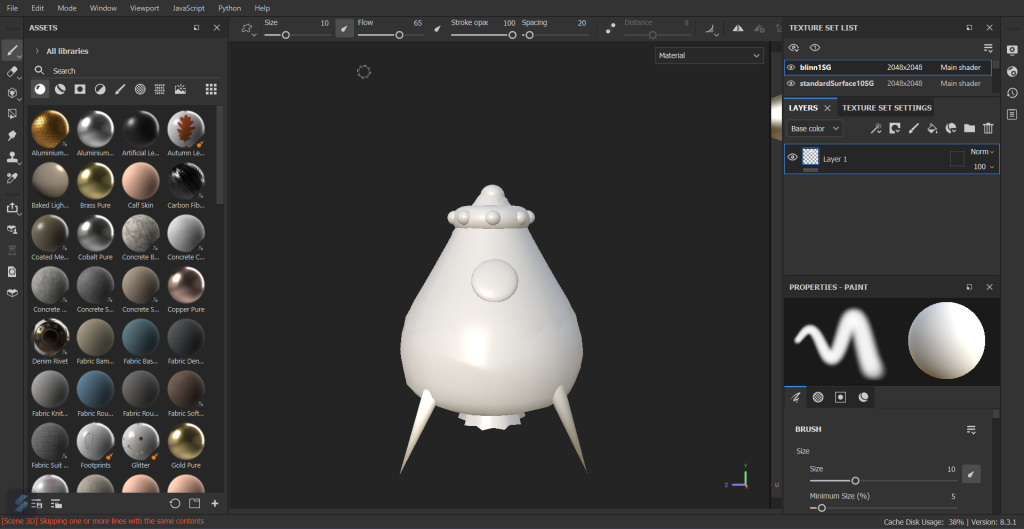
After importing the UV maps into Adobe Substance 3D Painter, this is how it looked, everything worked beautifully. Each object had their own layer, so it was very easy to add materials and textures without them bleeding over to a different section of the model.

Screenshot of Maya model imported into Substance Painter.

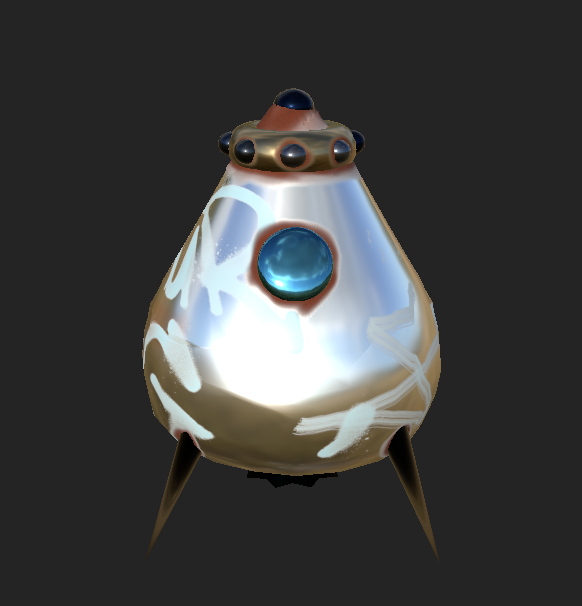
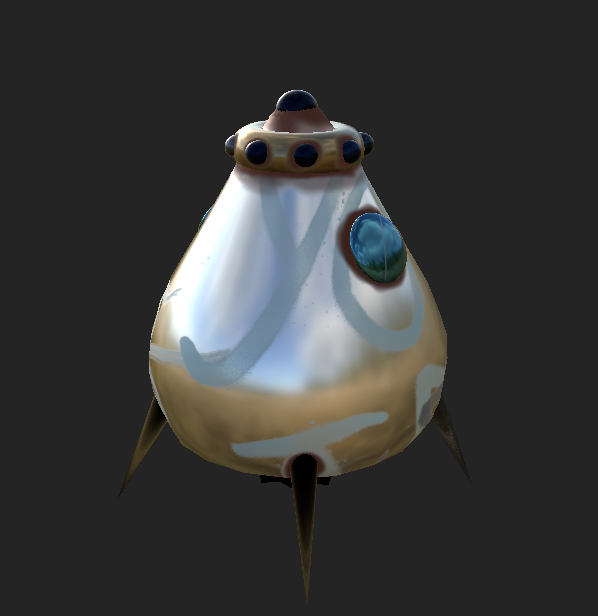
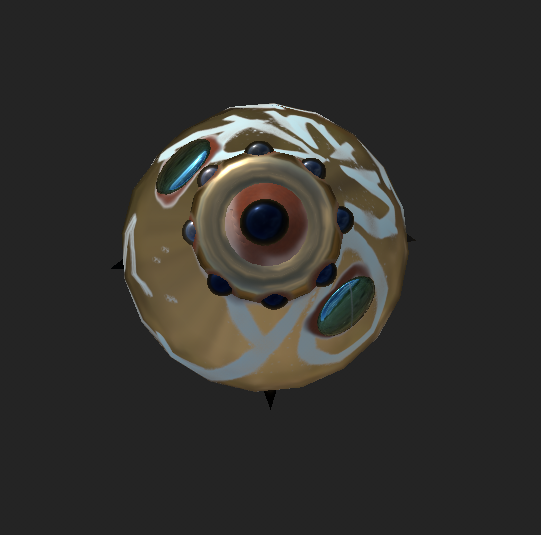
After experimenting with different textures and add-ons, this was the result created. The design is very metallic with rust painted around the top and legs. The rust, dents and added graffiti gave the illusion that this escape pod had been abandoned.

After finalising the texturing, it was time to export them and import them back into Maya. This step was complicated as the textures had to be added through different layers, the colour, metallic, roughness and bump mapping.

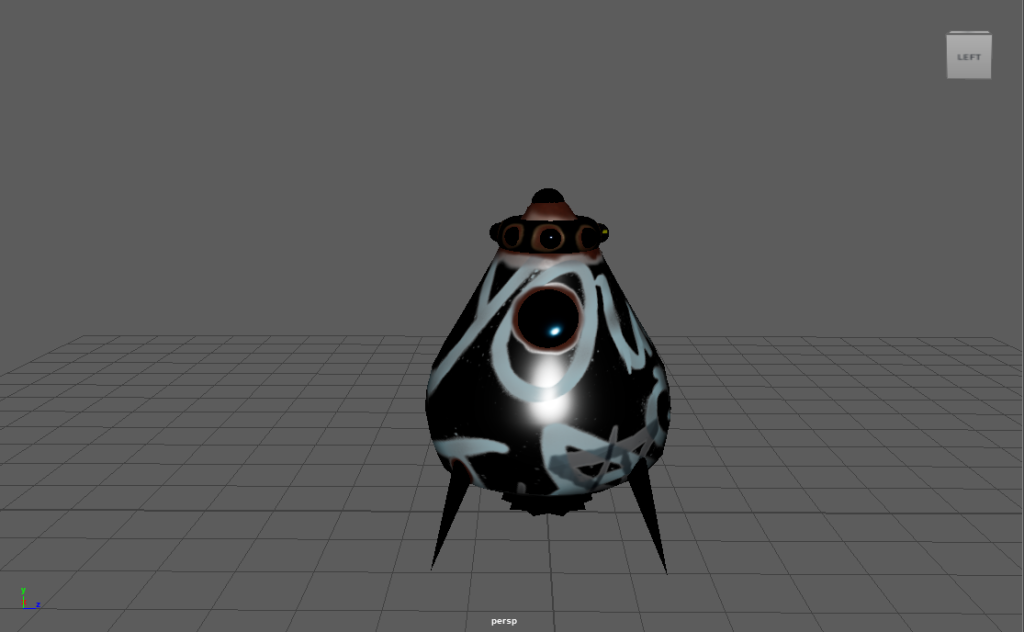
Screenshot showing the textured model after being imported back into Maya.

This was the result after importing the textures back in, as you can see it doesn’t match the complete model in Substance Painter. Each step was followed, and lighting was added but unfortunately, this could not be resolved.

Categories
Practical Exercises

Maya Animation and Lighting

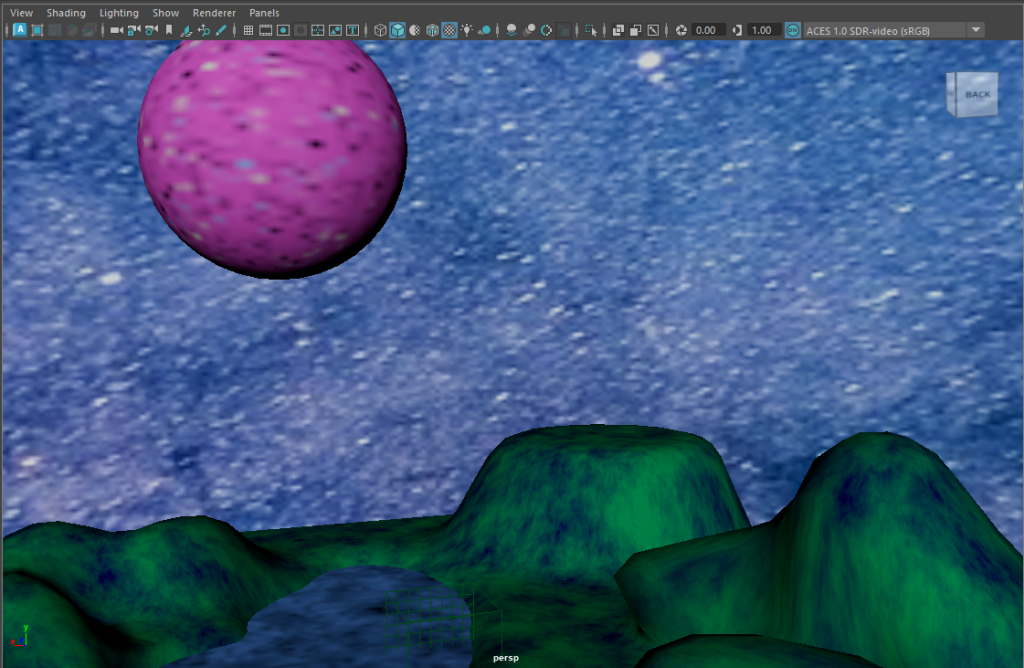
After texturing the space pod, it was now time to create some scenery. A plot of land was designed with added height in certain areas and spots of water. One heightened area has a flatter surface area, this will be used as the pod’s landing zone.

Screenshot of the scenery created which will be used in final animation.

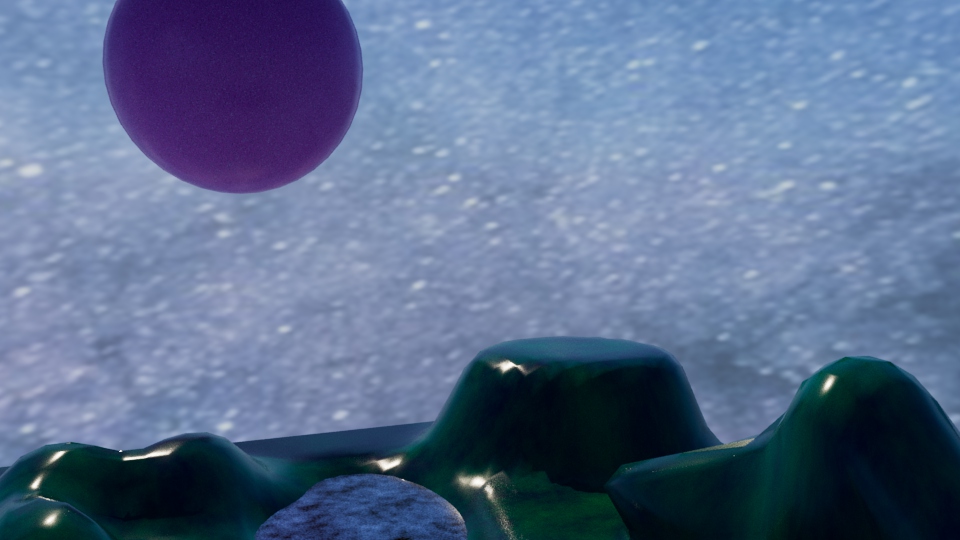
The image below shows the experimentation of using lights, although this image looks very well lit, it made the so called ‘grassy’ area look too shiny and unrealistic.

Rejected concept using certain lighting.

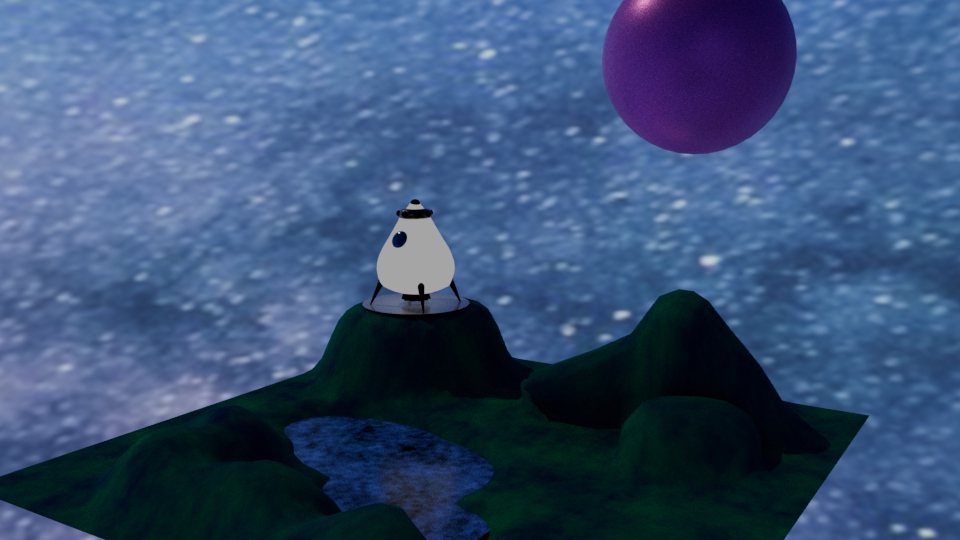
This is how the scene looked with the space pod now in view, a wooden stage has been added to emphasis the landing area. The blue/purple tones created a very sci-fi aesthetic but something seemed missing.

Image showing the finished scenery with the space pod in view.
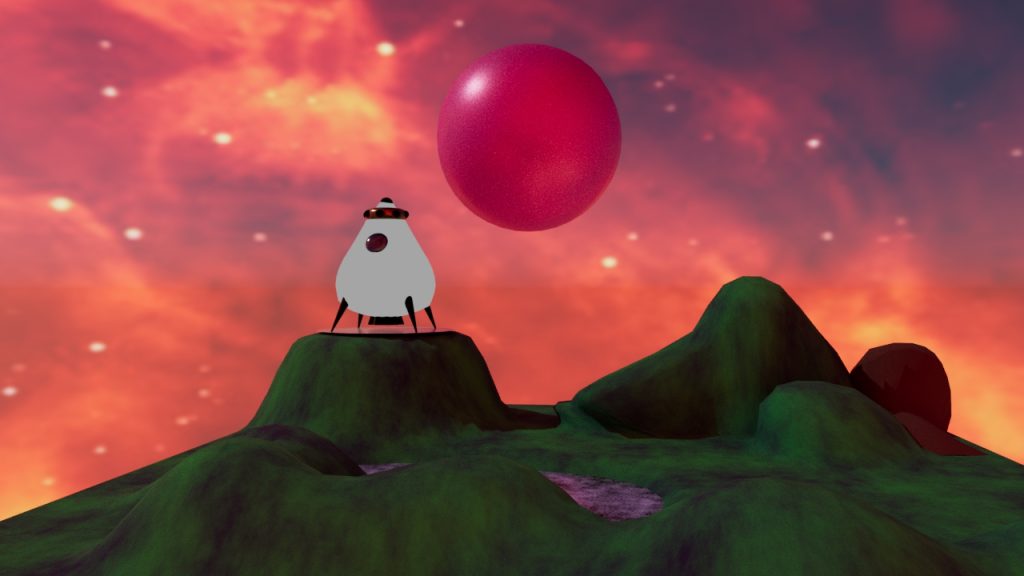
Finished scenery, ready to be animated.

Adding a different background and changing the colour of the planet in the background created this warm, burning aesthetic to the scene. This looked a lot more fitting then the previous scene.

Final animation video of the designed space pod and surrounding scenery.